
Getting Started
Open a project, click a file, edit a line, save.
This page walks the first three minutes. Open a project, click around, save a file, get back to your terminal.
Open a project
From any directory:
spiceedit              # opens the current directory as the project root
spiceedit ~/code/app   # opens a specific project root
spiceedit main.go      # opens that file (project root = its parent dir)
spiceedit new-file.go  # creates the file on first save (vim-style)
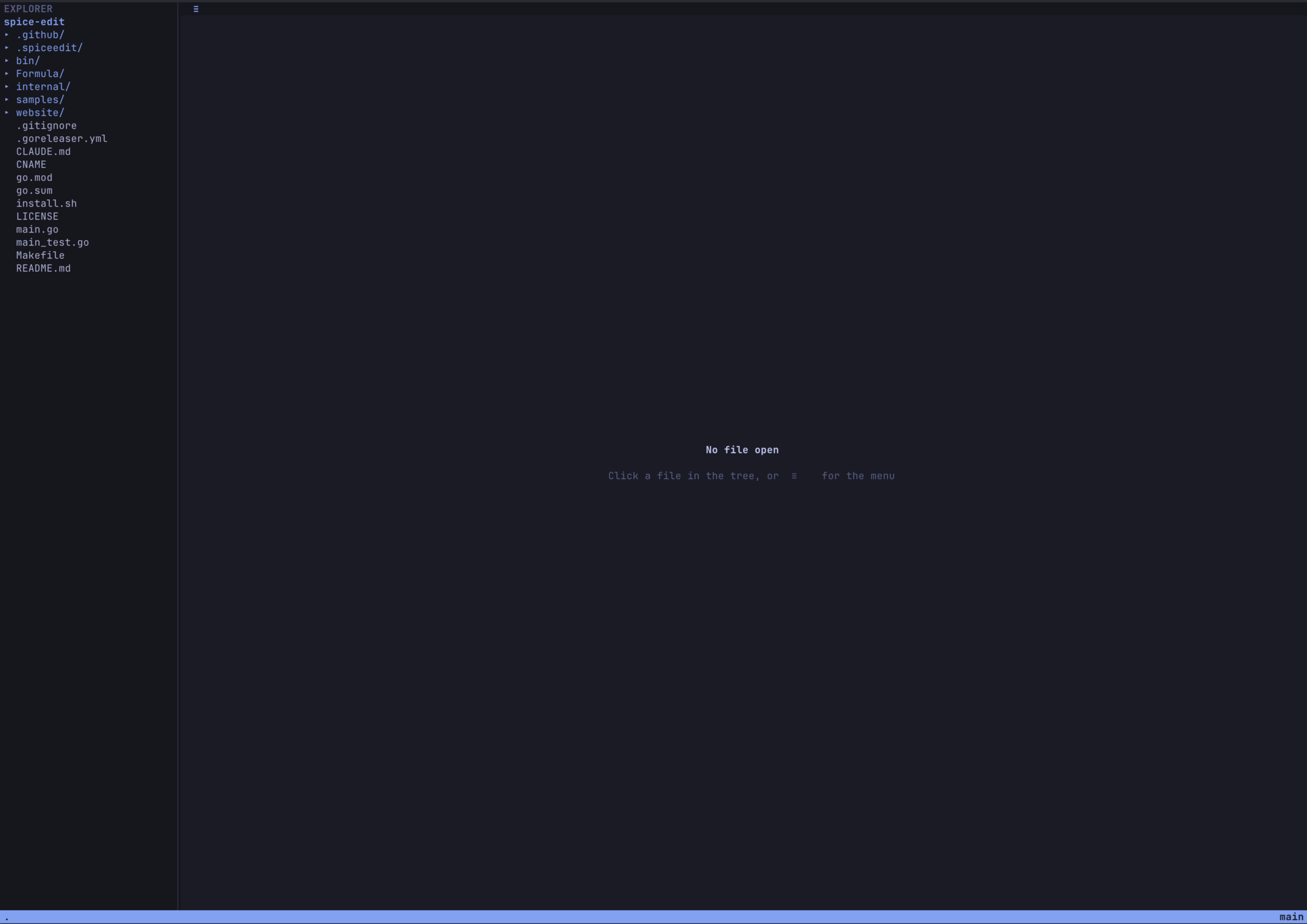
The layout is what you’d expect: a file tree on the left, a tab bar across the top, the editor in the middle, a status bar at the bottom.
Click a file
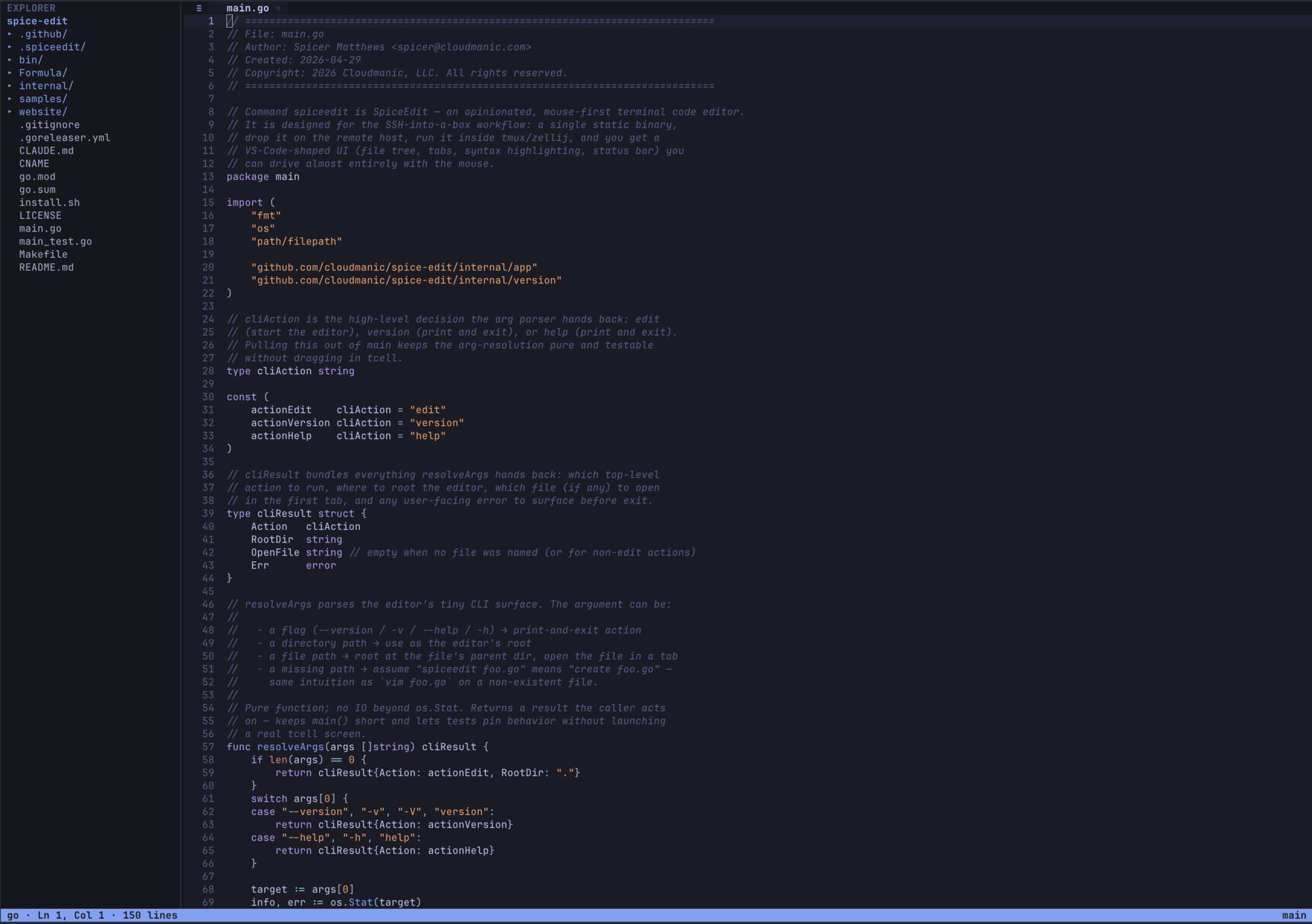
Single-click any file in the tree to open it. Single-click a folder to expand it. The active folder — the one New File and Rename Folder will target — bolds in the sidebar so you always know where the next file lands.
Switch tabs
Each open file is a tab. Click a tab body to switch. Click the × to close. Re-opening a file that’s already open just switches to its existing tab.
Open the menu
Every action lives in the action menu. Open it three ways:
- Click the
≡icon in the top-left corner. - Right-click anywhere outside the file tree (works in most terminals; macOS Terminal + tmux often eats Button3).
- Double-tap
Esc.
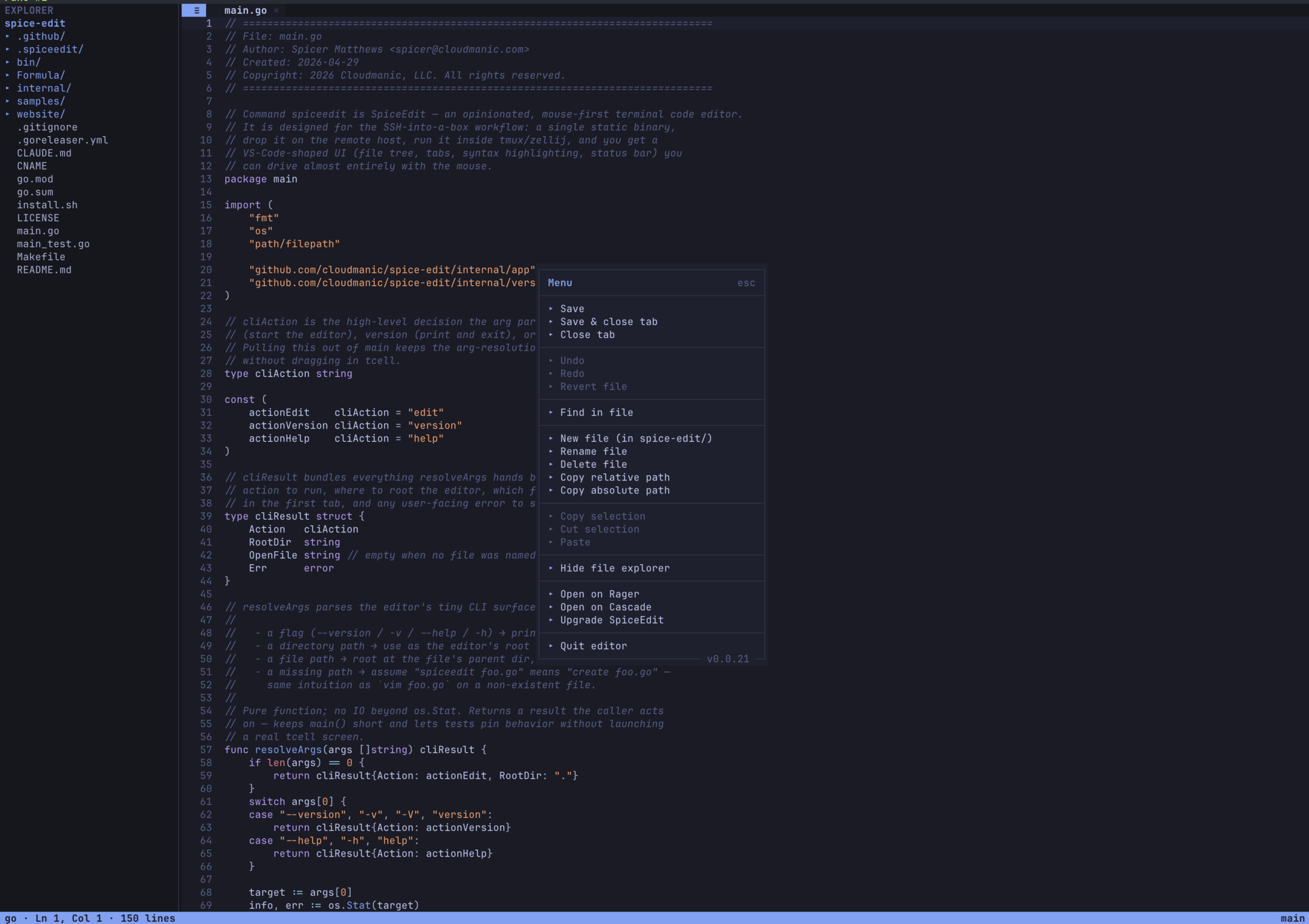
The menu is keyboard-navigable too — arrow keys to move, Enter to select, Esc to dismiss.
Edit and save
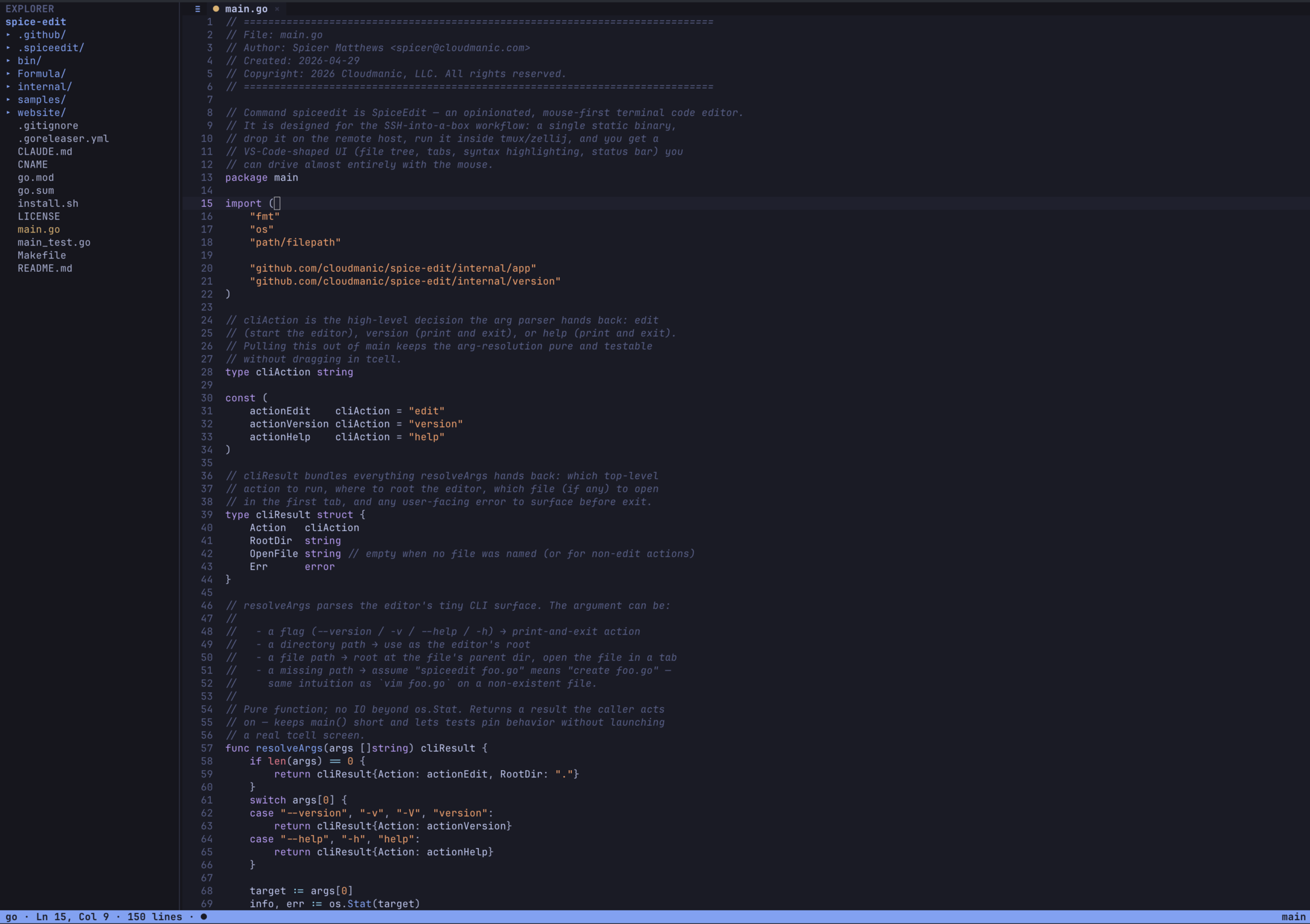
Click in the editor body to place the cursor. Type. Drag to select. The standard editor keys all work: arrow keys move, Shift+arrow extends selection, Home/End jump to line ends, PgUp/PgDn scroll a viewport.
To save: open the menu and pick Save, or press Esc s.
Resize the sidebar
Drag the column between the tree and the editor. Minimum sidebar width is 18 columns; the editor won’t shrink below 40.
Quit
Open the menu and pick Quit editor, or press Esc q. If any tabs have unsaved changes, you’ll see a Save / Discard / Cancel modal — Save & Close blocks the quit if a save fails, so no work is lost.
That’s it. You now know enough to use SpiceEdit. The rest of these docs are reference.